

Configure SAML 2.0
UIGraph acts as a SAML 2.0 service provider (SP). Each SAML provider belongs to one organization and has its own entity ID, assertion consumer service (ACS) URL, metadata URL, certificate, and attribute mappings.
UIGraph supports SP-initiated login. Users start from the UIGraph sign-in screen, and UIGraph sends an AuthnRequest to the identity provider (IdP).
Prerequisites
Before creating the provider, confirm that:
UIGRAPH_PUBLIC_URLis the externally reachable HTTPS base URL.- The API's general
UIGRAPH_SECRET_KEYis configured so the generated SP private key can be encrypted. - You are an administrator of the UIGraph organization.
- You can create a SAML application at the IdP.
- You have a test user with a stable email address.
- You retain a working password-admin session while testing.
Changing UIGRAPH_PUBLIC_URL after setup changes the generated entity ID, ACS URL, and metadata URL. Update the IdP application whenever this URL changes.
Create the UIGraph provider
- Open Settings > SSO in the target organization.
- Select Add provider.
- Choose SAML 2.0.
- Enter a unique provider slug and display name.
- Save the provider.
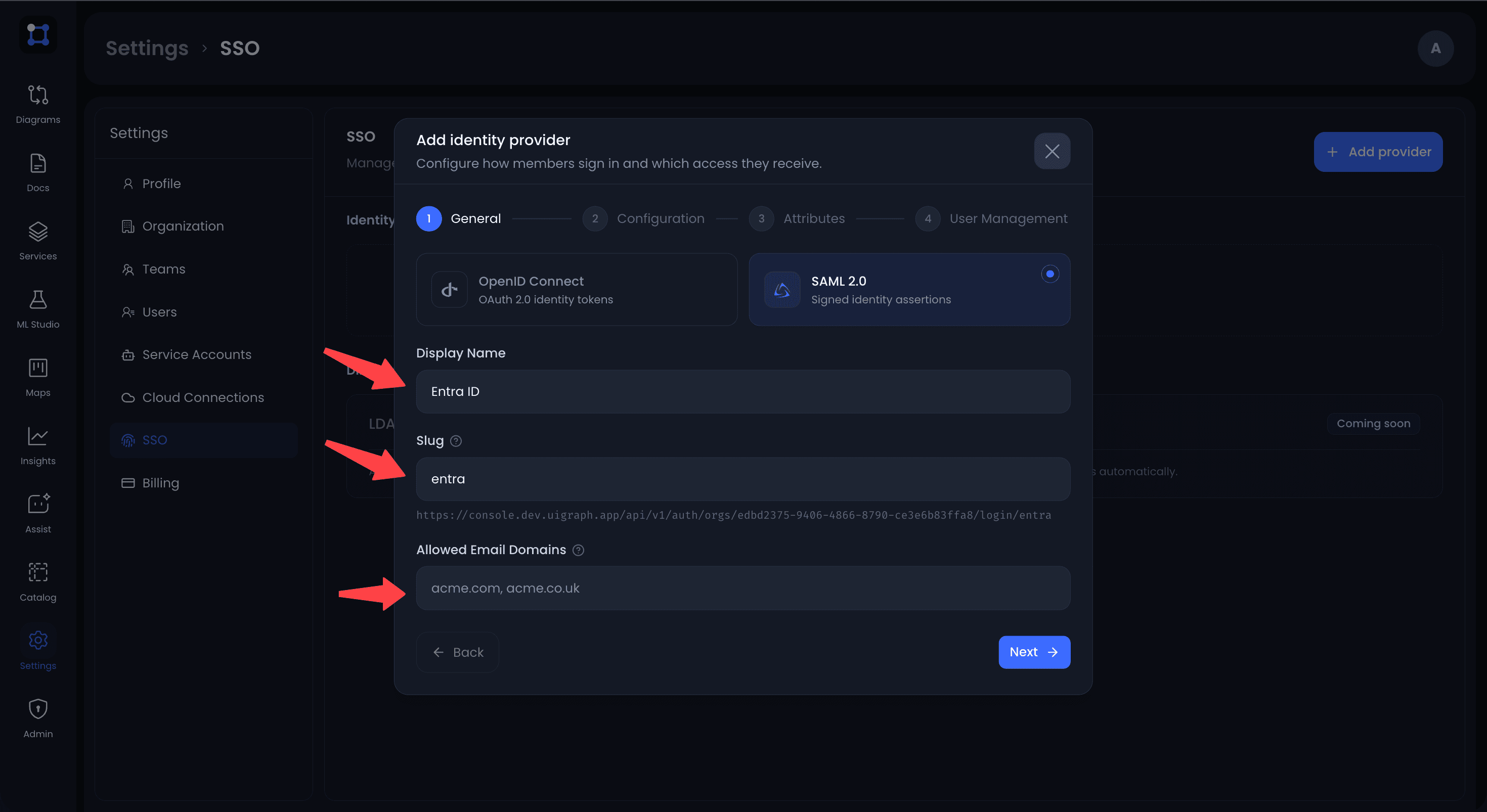
The slug must be 2 to 63 characters and use only lowercase letters, digits, and single hyphens. It cannot be changed later.
After creation, open the provider's Configuration tab. UIGraph displays the exact values required by the IdP:
| UIGraph value | Common IdP label |
|---|---|
| Entity ID | Audience, SP entity ID, Identifier |
| ACS URL | Reply URL, Single sign-on URL, Consumer URL |
| Metadata URL | SP metadata URL |
The URLs include both the organization ID and provider slug:
Entity ID:   ${UIGRAPH_PUBLIC_URL}/api/v1/auth/orgs/<orgID>/saml/<slug>/metadata
ACS URL:     ${UIGRAPH_PUBLIC_URL}/api/v1/auth/orgs/<orgID>/saml/<slug>/acs
Metadata:    ${UIGRAPH_PUBLIC_URL}/api/v1/auth/orgs/<orgID>/saml/<slug>/metadata
The entity ID and metadata URL are currently the same URL.
Use the copy buttons next to each field rather than retyping the values.
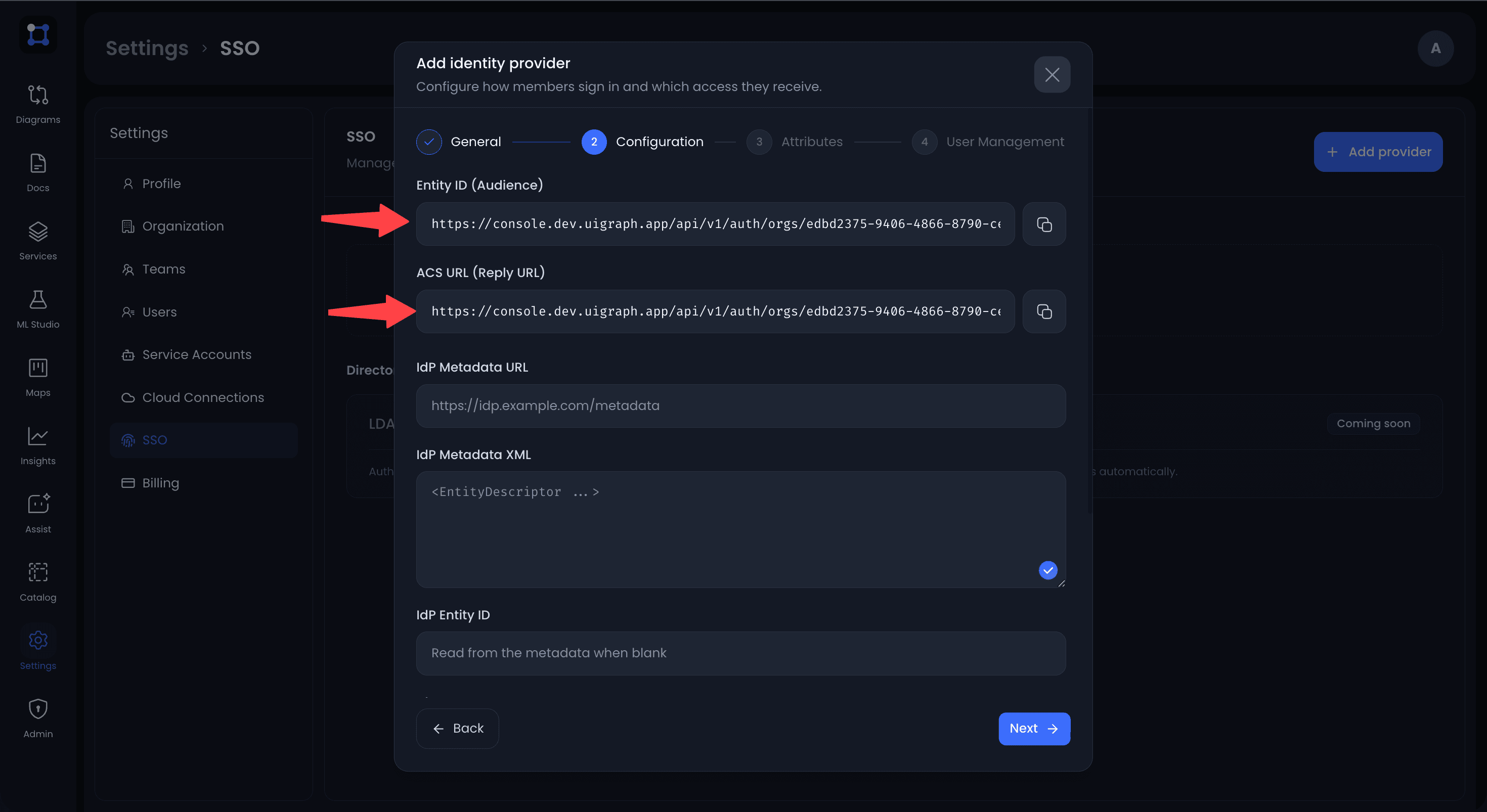
Configure the IdP application
At the IdP:
- Create a SAML 2.0 web application.
- Copy the UIGraph entity ID into the IdP's audience or identifier field.
- Copy the UIGraph ACS URL into the reply or consumer URL field.
- Configure the IdP to sign SAML assertions or responses.
- Assign the test user to the application.
- Configure the email, display name, and optional group attributes.
- Export the IdP metadata URL or metadata XML.
UIGraph requires a signing certificate and an HTTP-Redirect SSO endpoint. Metadata that exposes only another SSO binding cannot be imported automatically.
Example: Microsoft Entra ID walks through these steps in one identity provider.
Import IdP metadata
The simplest configuration is one of:
- IdP Metadata URL: UIGraph downloads and parses the metadata when the provider is saved.
- IdP Metadata XML: paste the complete metadata document.
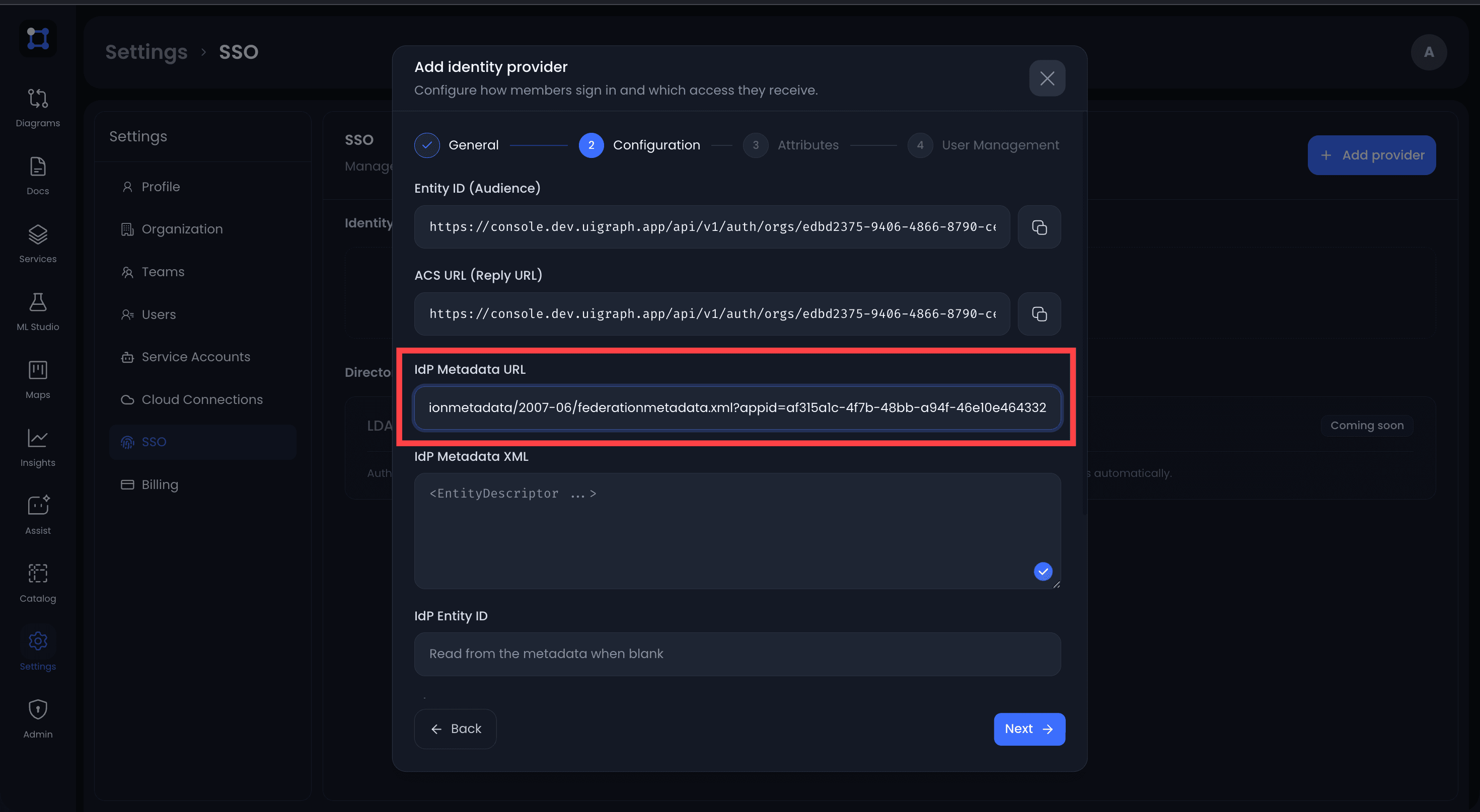
UIGraph reads the IdP entity ID, first HTTP-Redirect SSO URL, and signing certificate from the metadata. Explicit values entered in the form take precedence over imported values.
Alternatively, configure the following fields manually:
| Field | Required behavior |
|---|---|
| IdP Entity ID | Identifies the IdP. Usually imported from metadata. |
| IdP SSO URL | Destination for HTTP-Redirect AuthnRequests. |
| IdP Signing Certificate | PEM certificate or base64-encoded certificate used to verify responses. |
Multiple PEM certificates can be supplied when an IdP publishes overlapping certificates during rotation.
Remote metadata
An IdP metadata URL is fetched by the UIGraph API. Use an HTTPS endpoint controlled by your identity provider. Metadata is parsed when the provider is saved; do not assume later IdP metadata changes are applied automatically without saving the provider again.
Configure attributes
Open the provider's Attributes tab.
| Setting | Default | Purpose |
|---|---|---|
| Email Attribute | email | Account email. Login fails if the configured attribute is absent. |
| Name Attribute | displayName | Display name. UIGraph falls back to the email when absent. |
| Name ID Format | urn:oasis:names:tc:SAML:1.1:nameid-format:emailAddress | Format requested in the AuthnRequest. |
| Groups Attribute | groups | Suggested attribute for role mapping rules. |
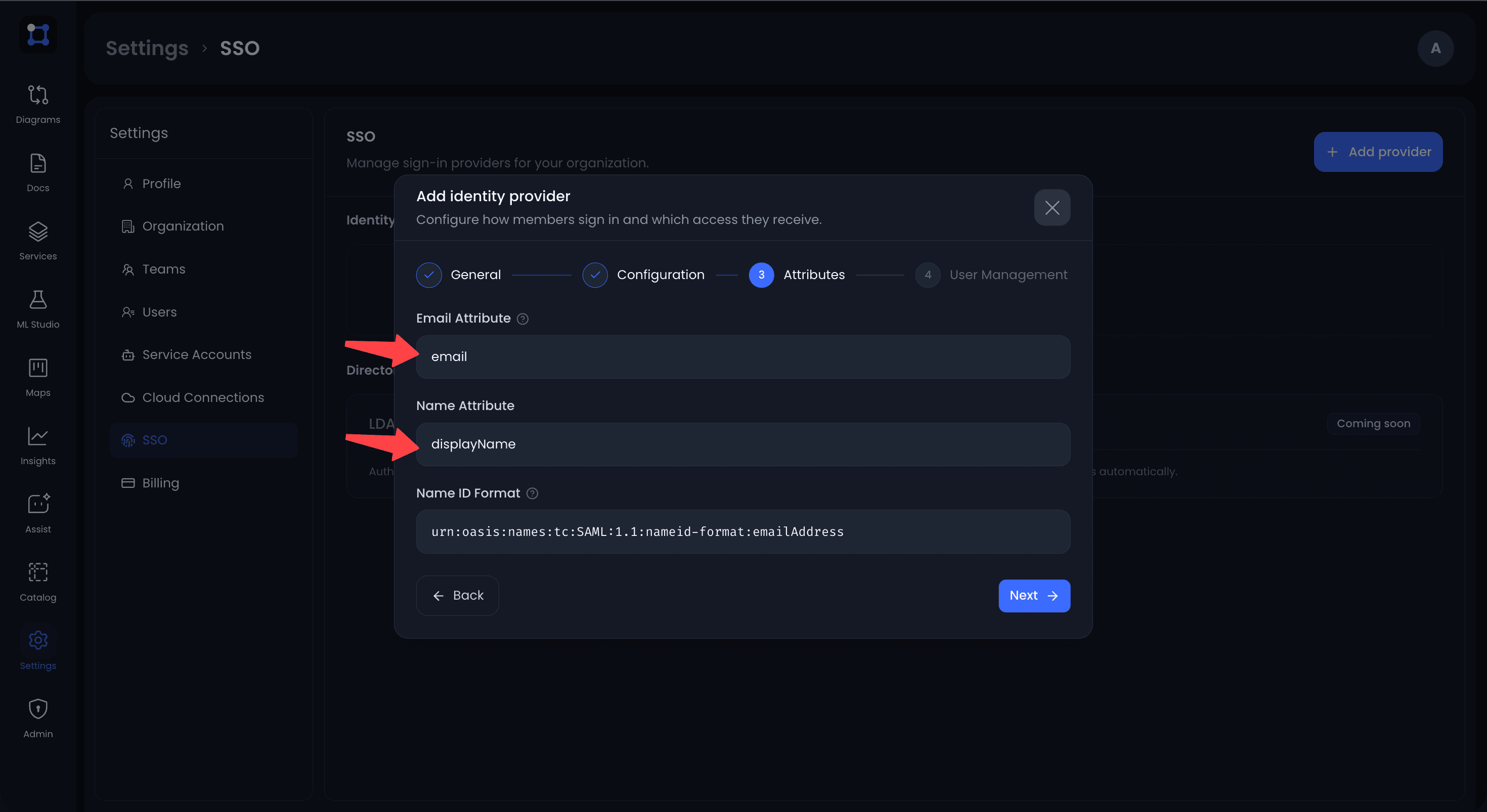
Each value has to match the attribute name the IdP sends. The IdP application usually needs a matching claim added to it.
When Email Attribute is empty, UIGraph uses the assertion's NameID as the email. When it is configured, the named attribute is required.
The SAML NameID is stored as the provider subject identity when available. UIGraph still locates and creates user accounts by normalized email during login.
UIGraph makes SAML attributes available to role mapping rules under both their canonical names and friendly names when supplied by the IdP.
Signed AuthnRequests
Enable Sign authentication requests only when the IdP requires signed requests.
UIGraph generates an RSA-2048 SP keypair and a self-signed SP certificate. The private key is encrypted in the database with the API's master secret key. AuthnRequests are signed with RSA-SHA256.
If the IdP needs the SP certificate, import it from the UIGraph SP metadata document.
Configure users and roles
Open the provider's Users tab:
- Enable Allow new users to sign up to create accounts on first successful login.
- Select the default organization role:
viewer,editor, oradmin. - Add ordered role mapping rules for groups or other SAML attributes.
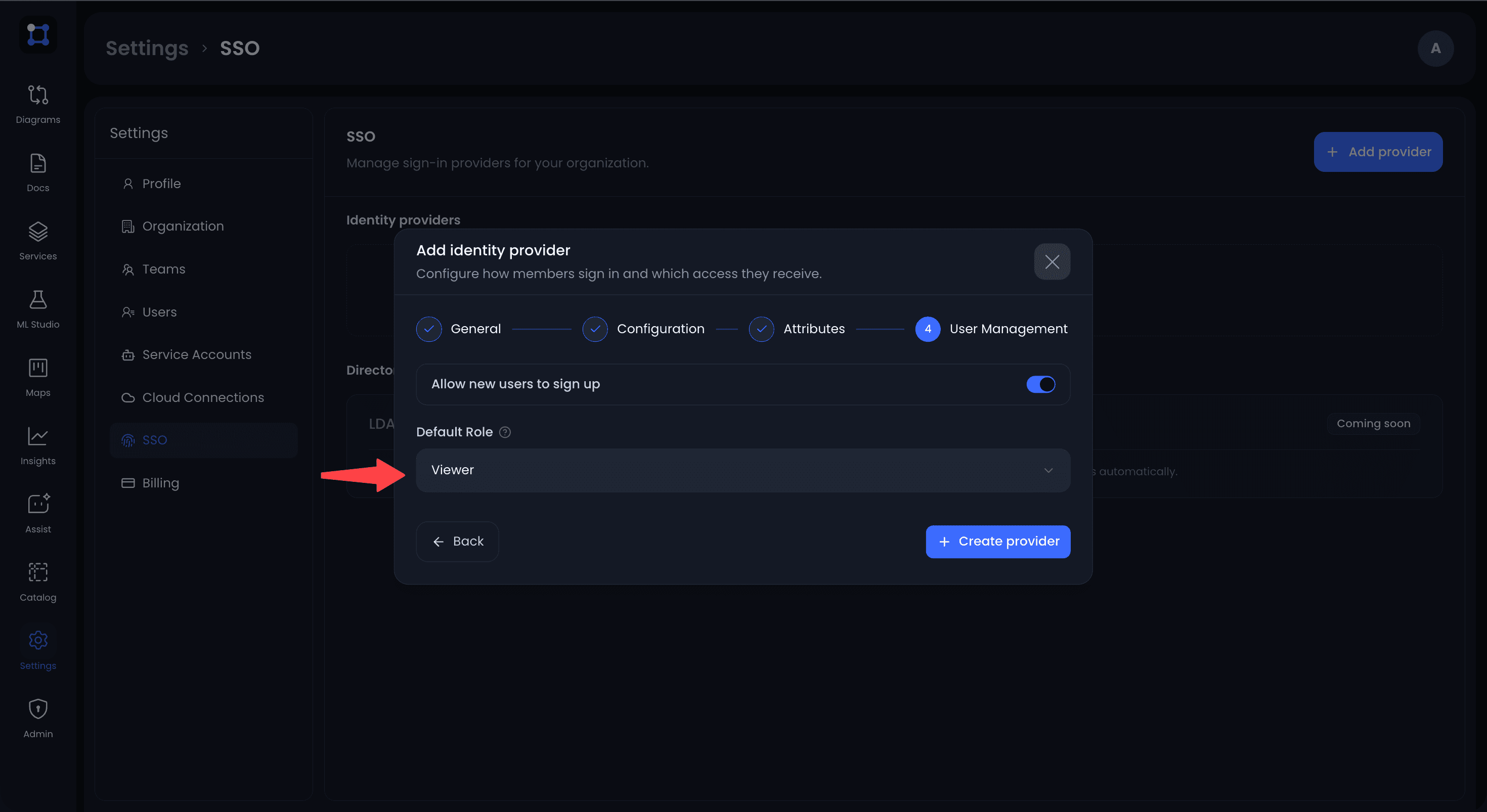
Rules are evaluated from top to bottom and the first match wins. See Provisioning, Domains & Roles for operators and lifecycle behavior.
Example: Microsoft Entra ID
A complete run through one identity provider. The UIGraph side is the same for every IdP; only the portal changes.
Create the enterprise application
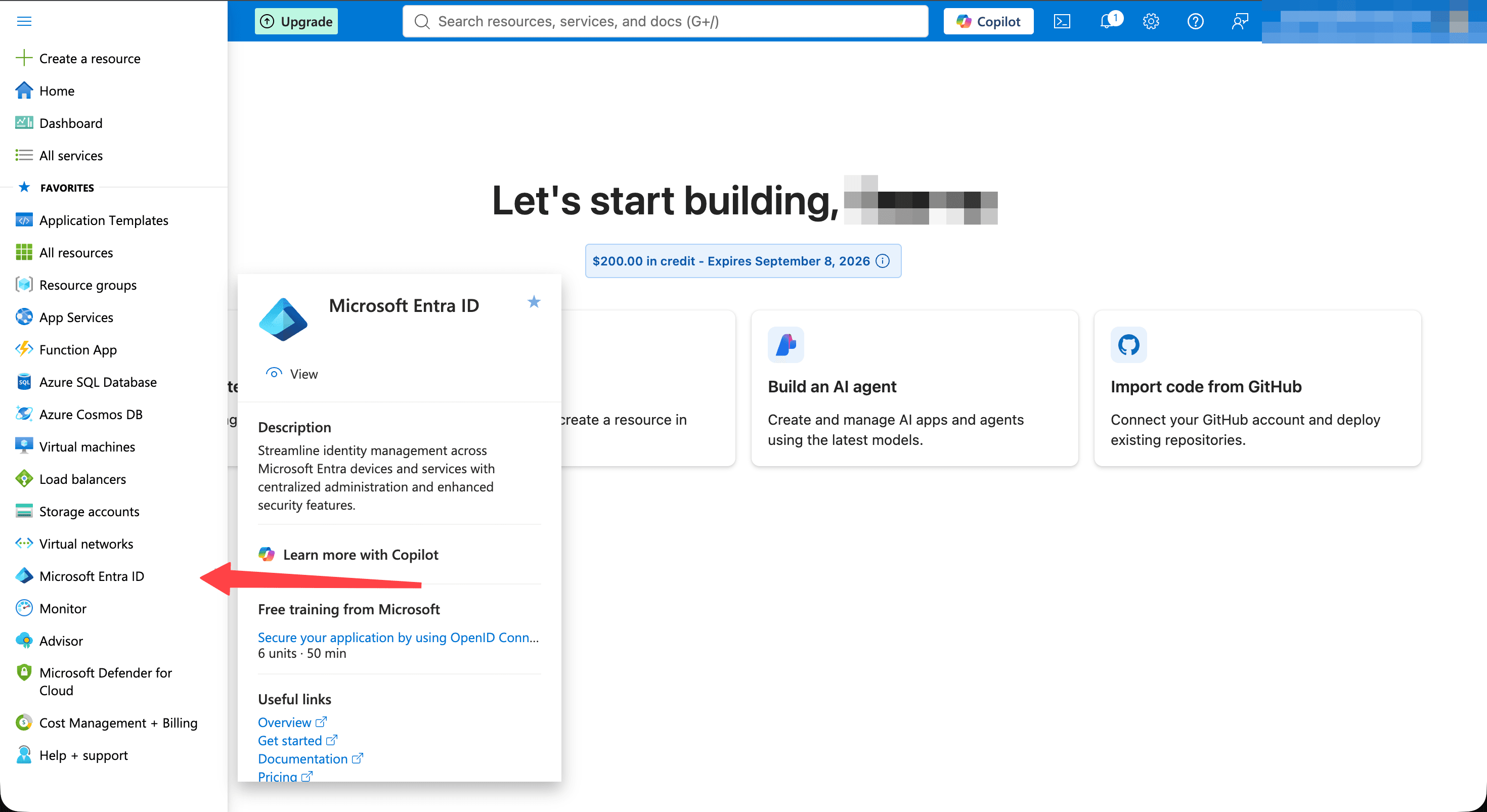
Open the Azure portal and select Microsoft Entra ID.
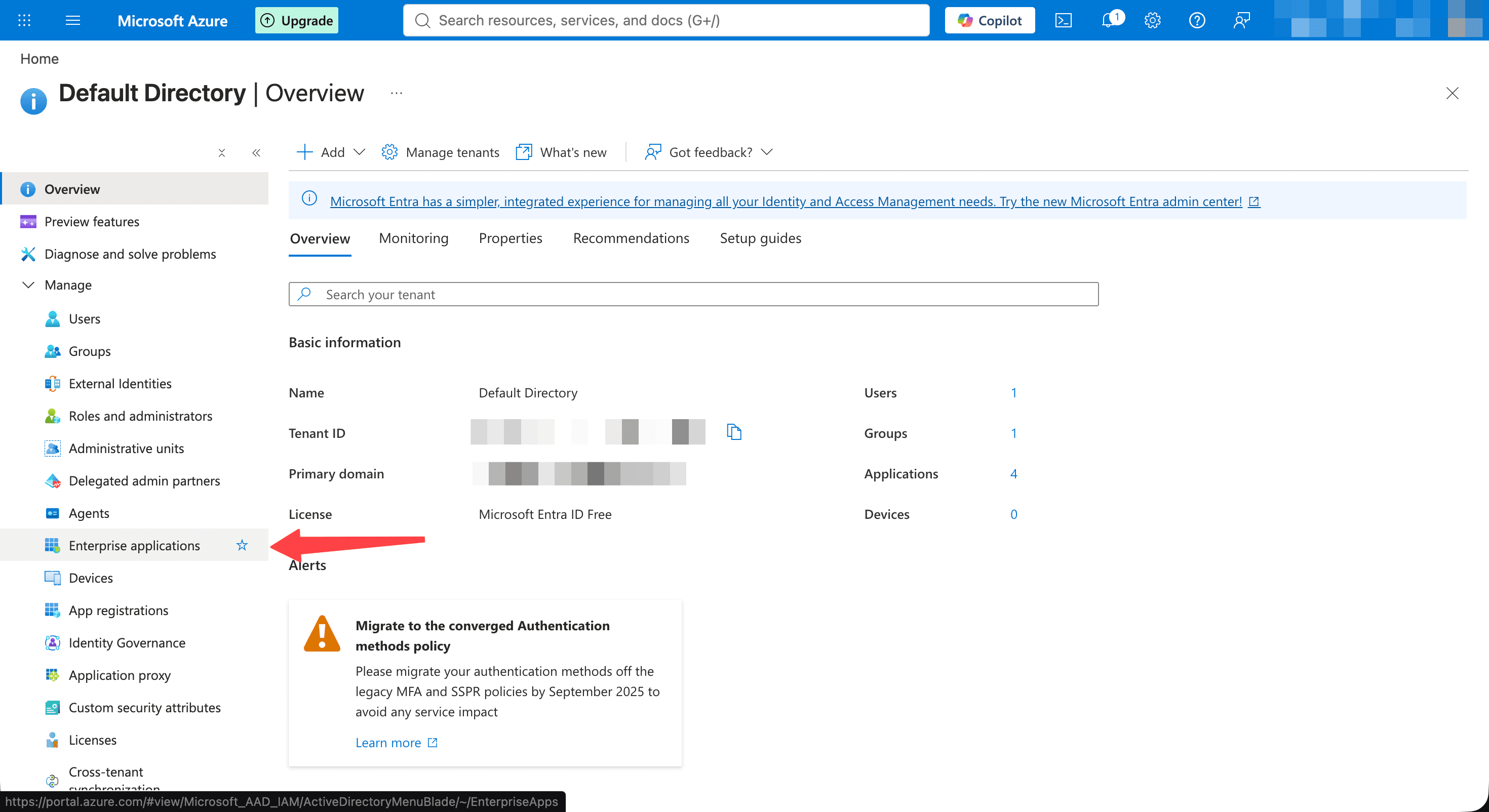
Select Enterprise applications.
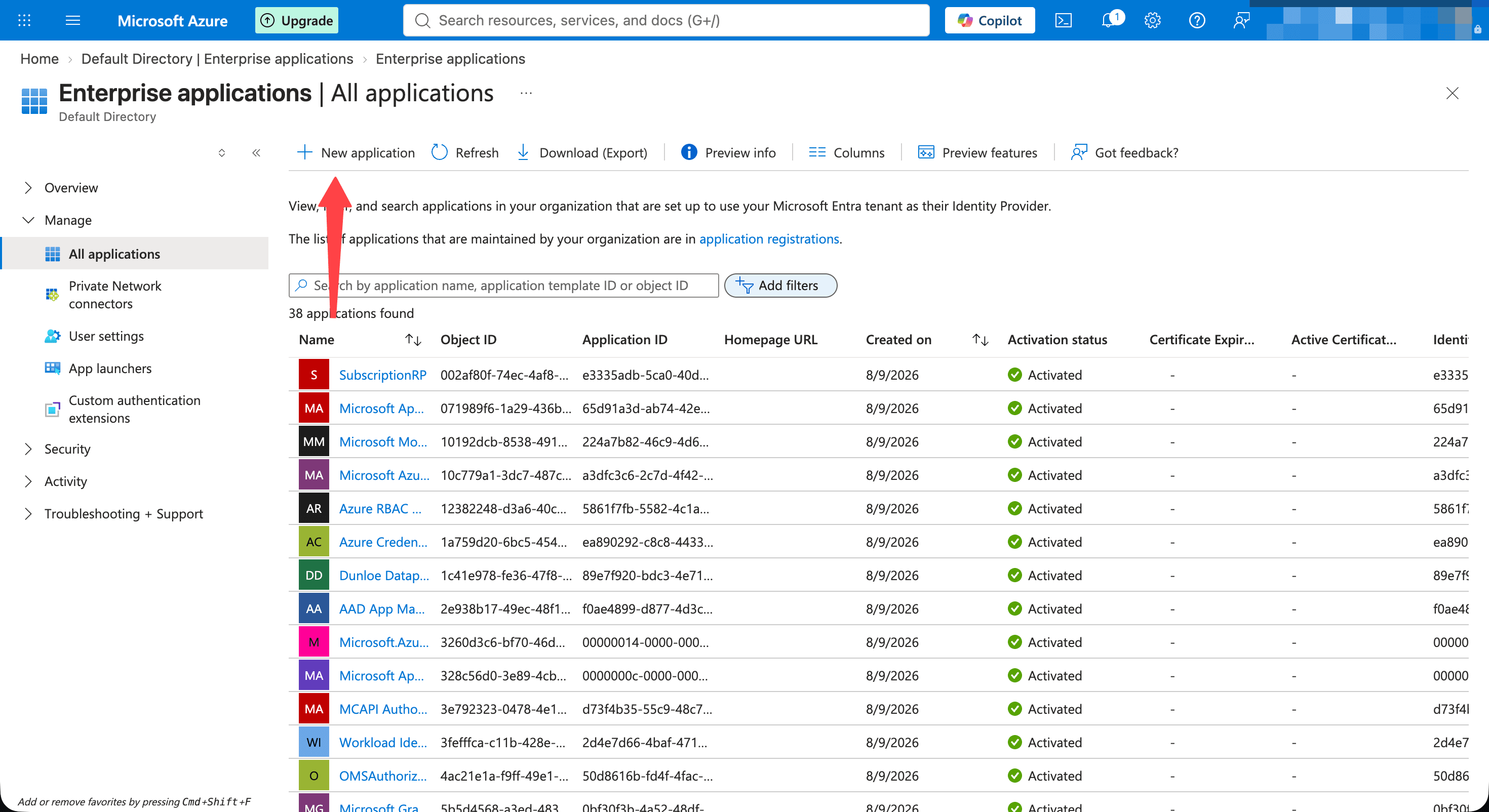
Select New application.
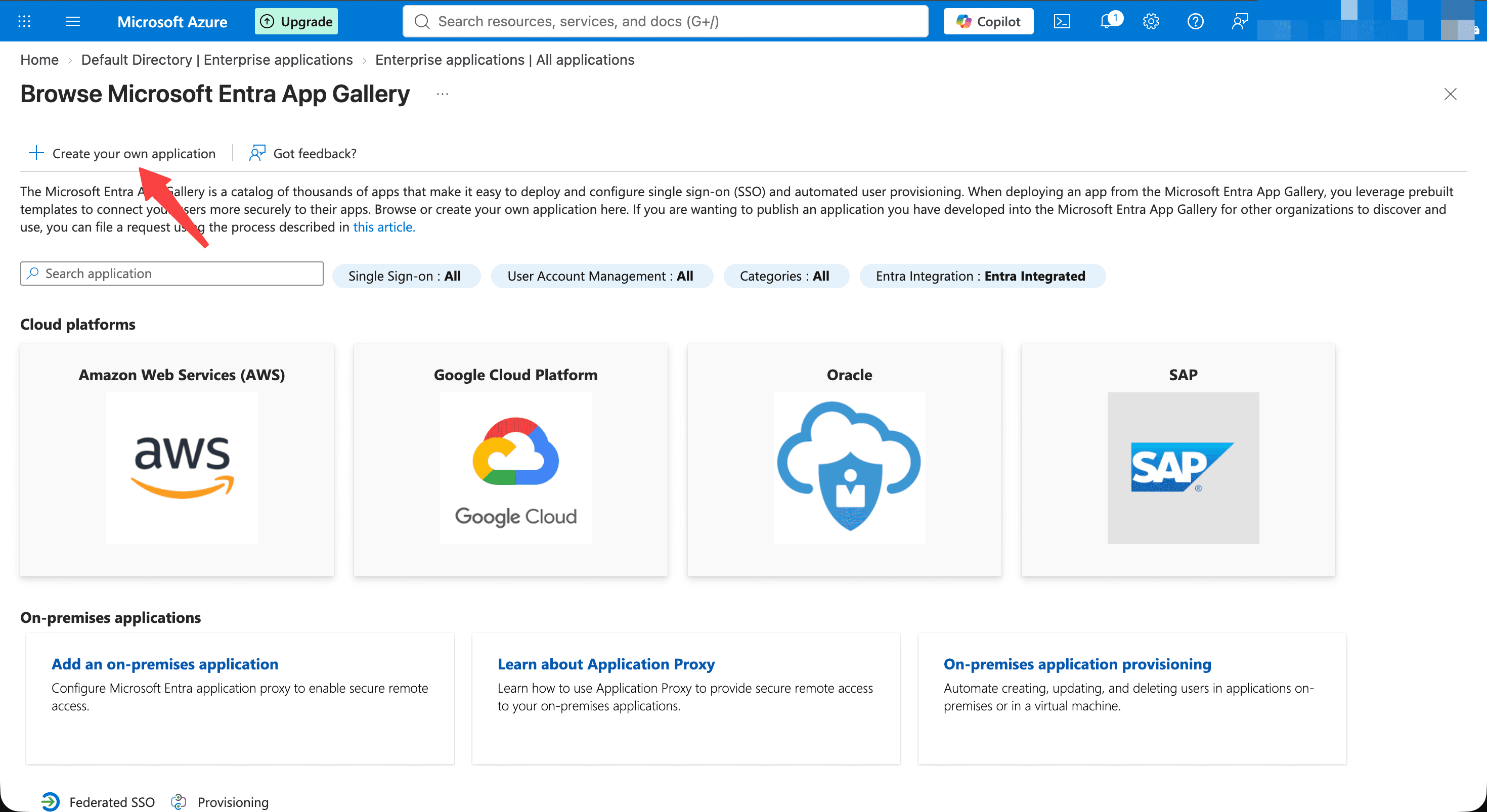
Select Create your own application.
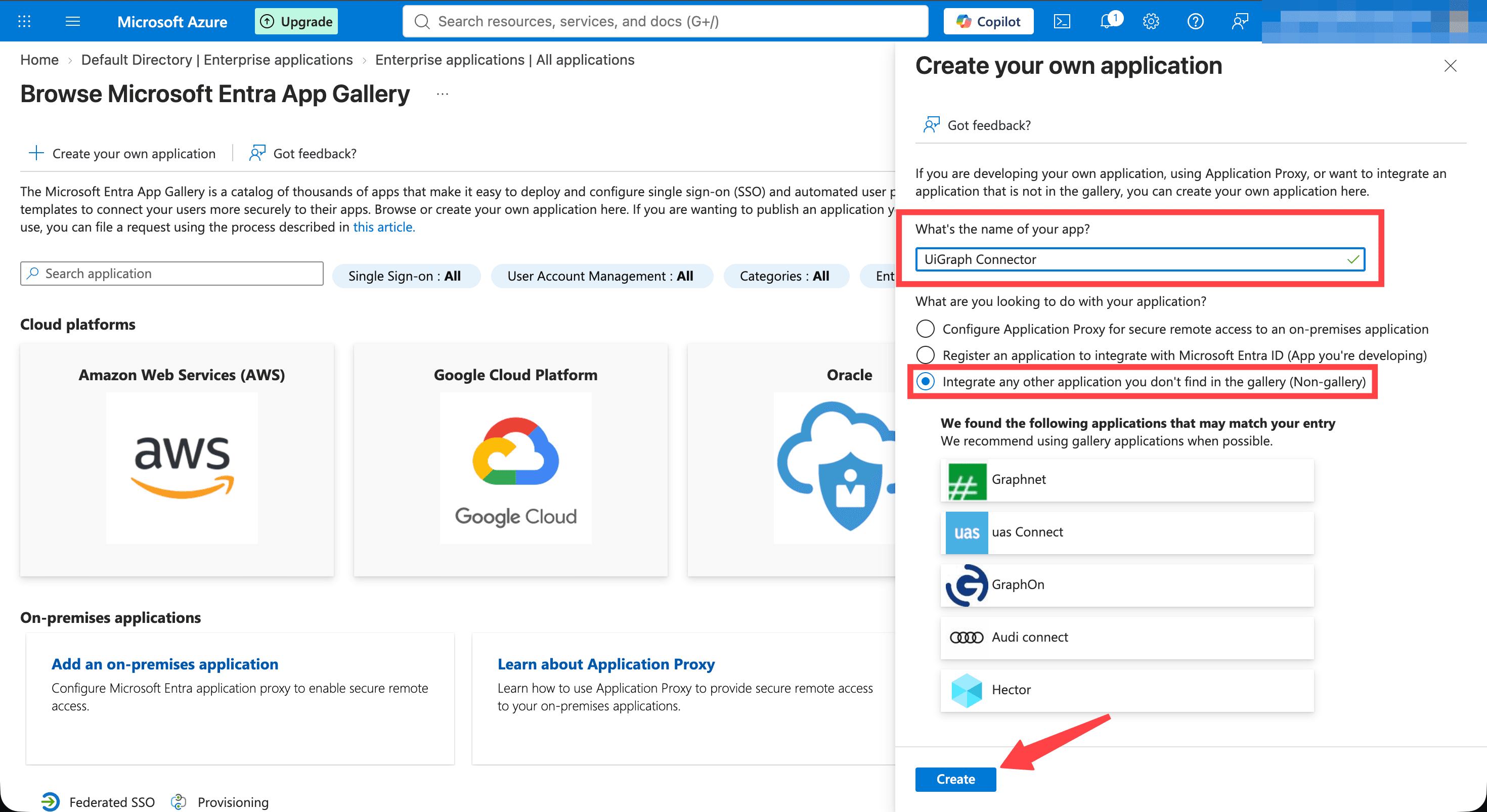
Name the application, choose Integrate any other application you don't find in the gallery (Non-gallery), then select Create.
Turn on SAML
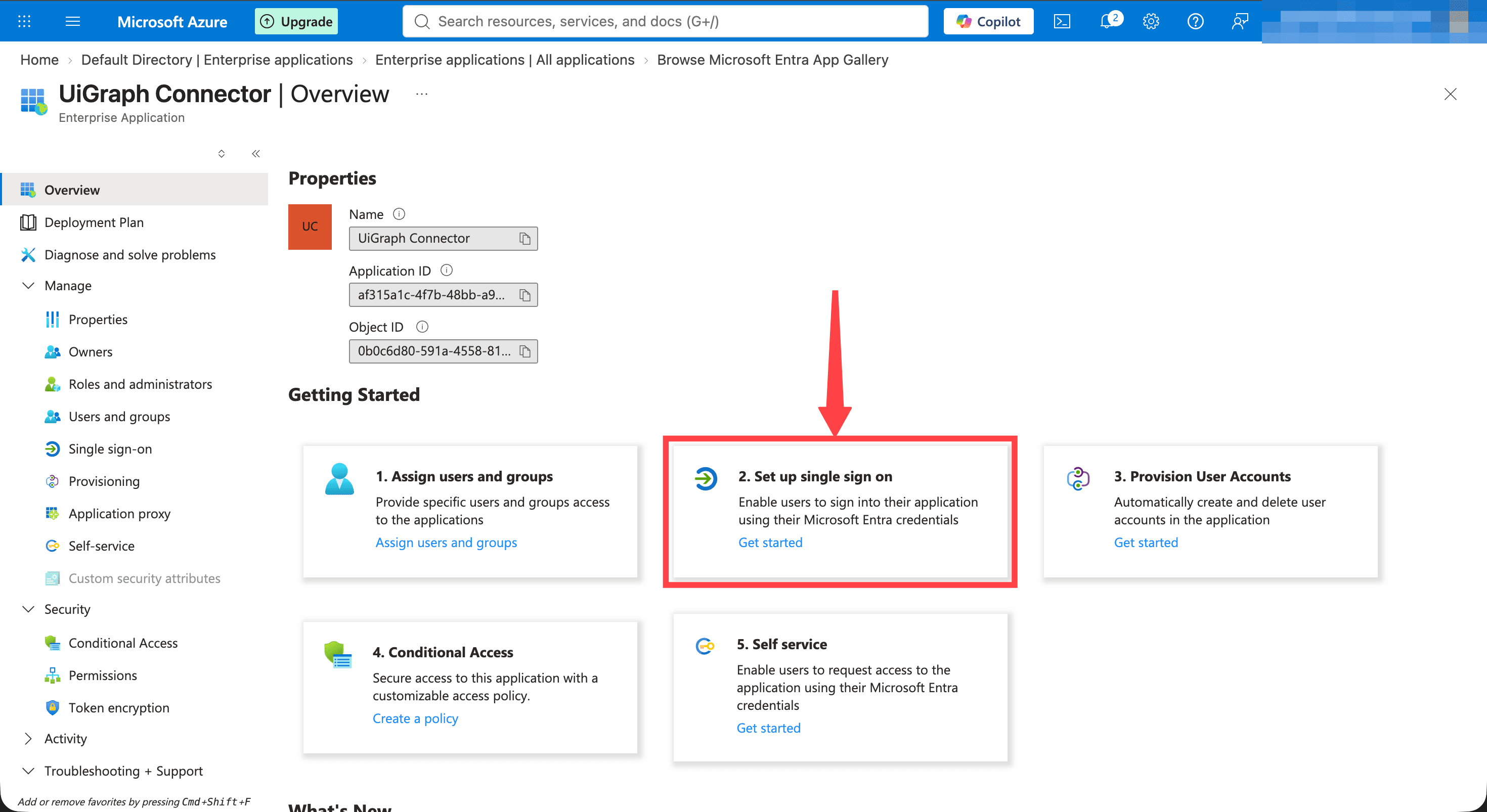
On the application overview, select 2. Set up single sign on.
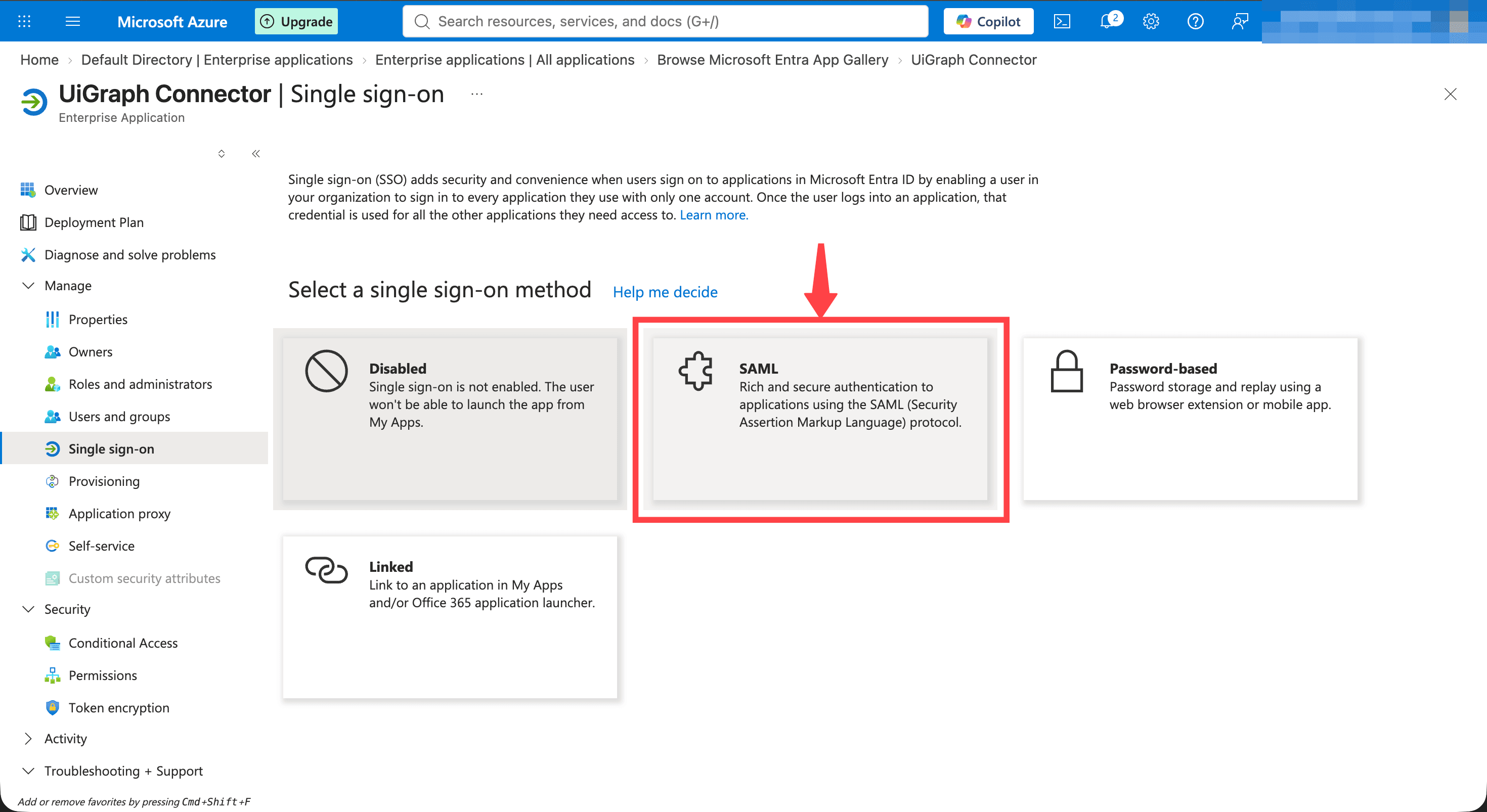
Choose SAML.
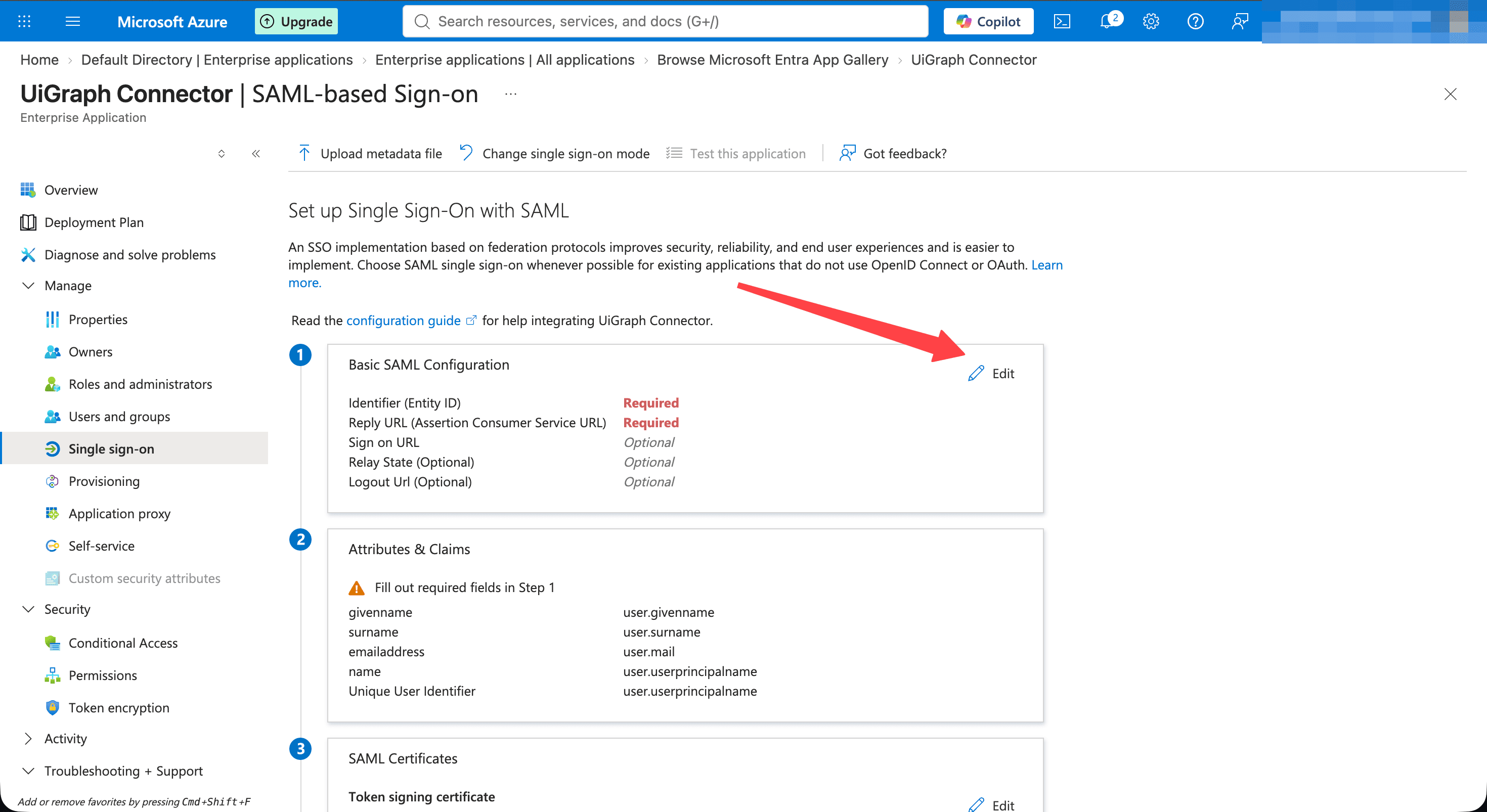
Select Edit on Basic SAML Configuration.
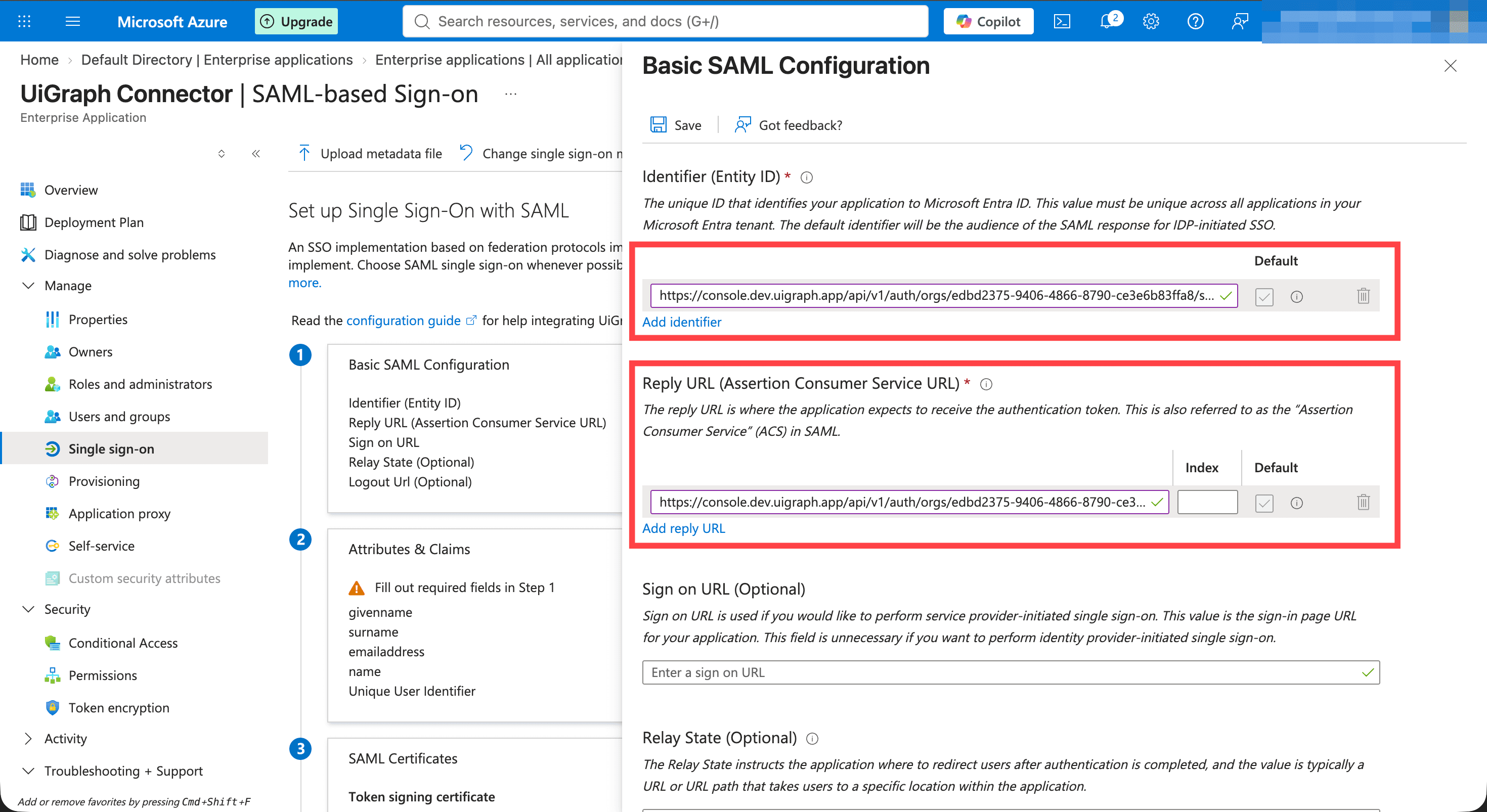
Paste the UIGraph Entity ID into Identifier (Entity ID) and the UIGraph ACS URL into Reply URL, then save.
Copy the metadata URL
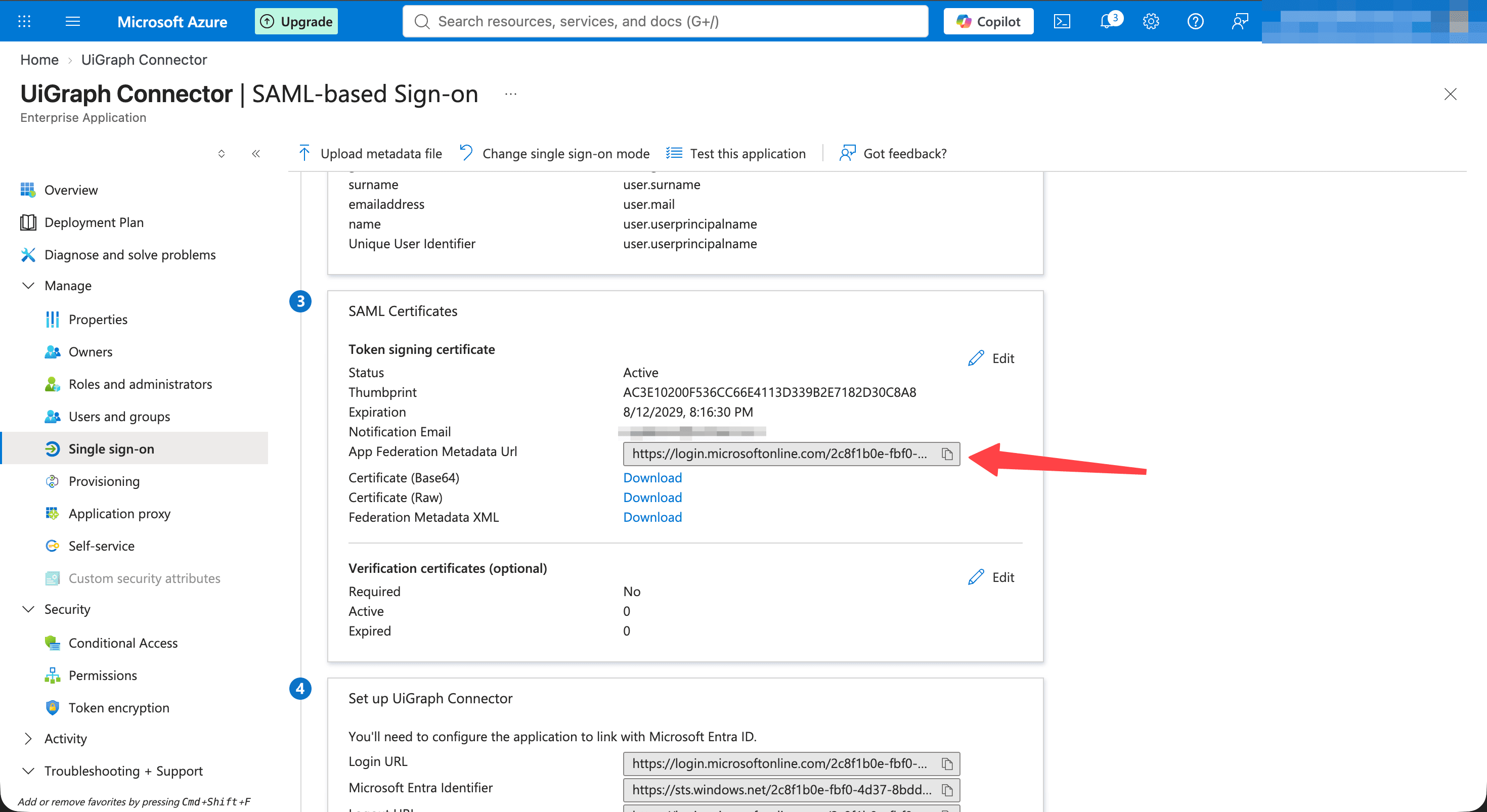
Under SAML Certificates, copy App Federation Metadata Url and paste it into the UIGraph IdP Metadata URL field.
Add the email and name claims
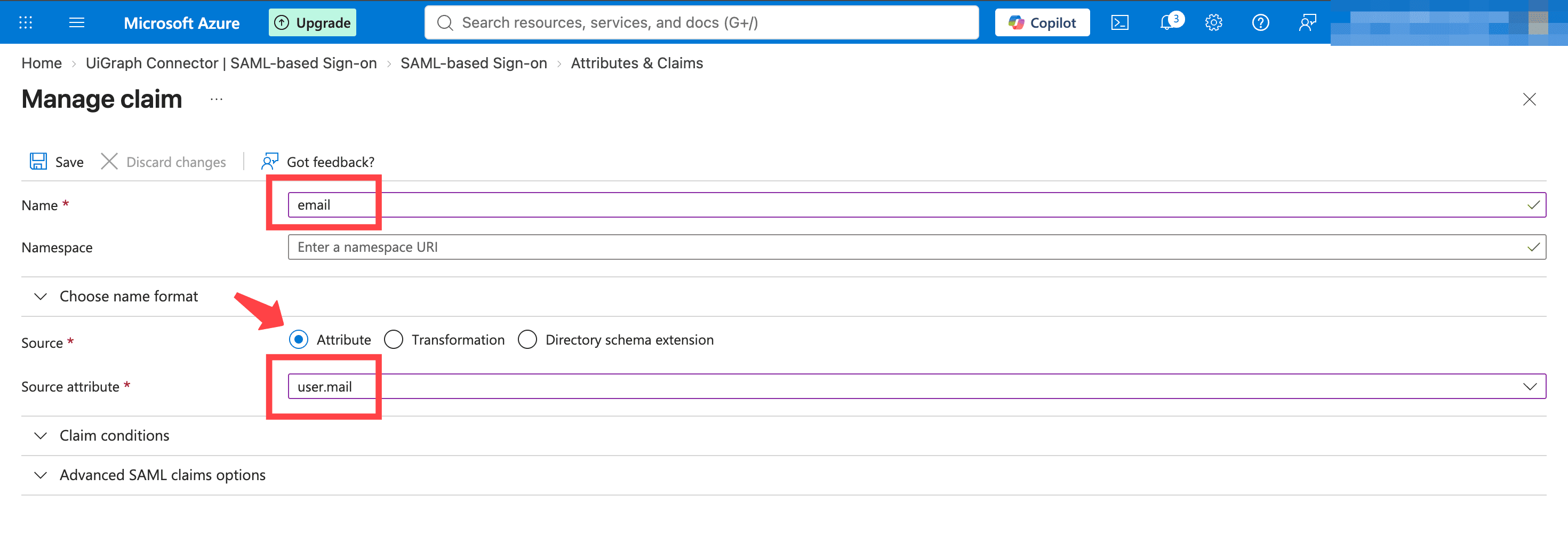
Entra ID sends its claims under long schema names by default. Add two claims whose names match the UIGraph Email Attribute and Name Attribute.
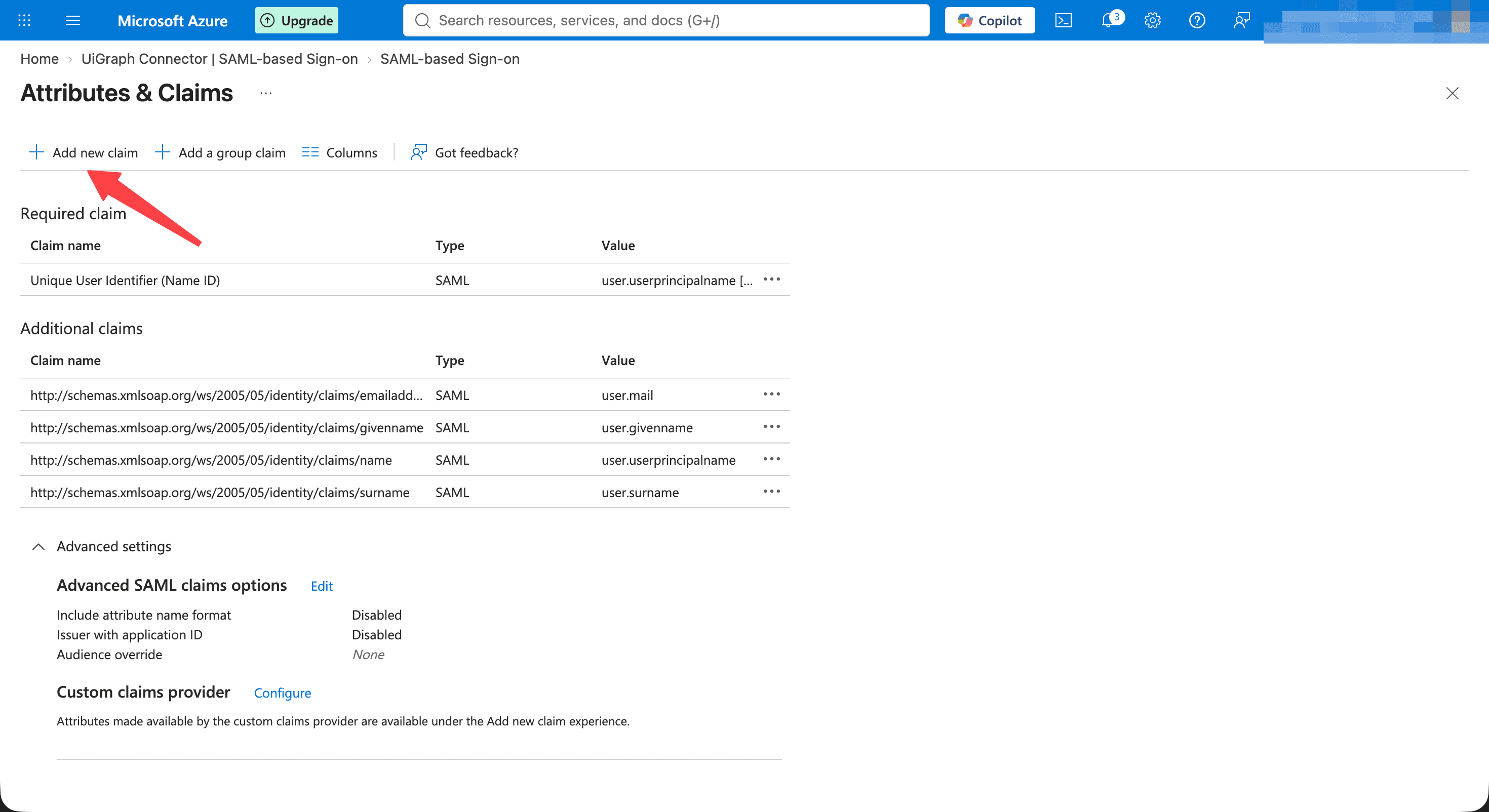
On Attributes & Claims, select Add new claim.
Add a claim named email with the source attribute user.mail.
Add a second claim named displayName with the source attribute user.displayname.
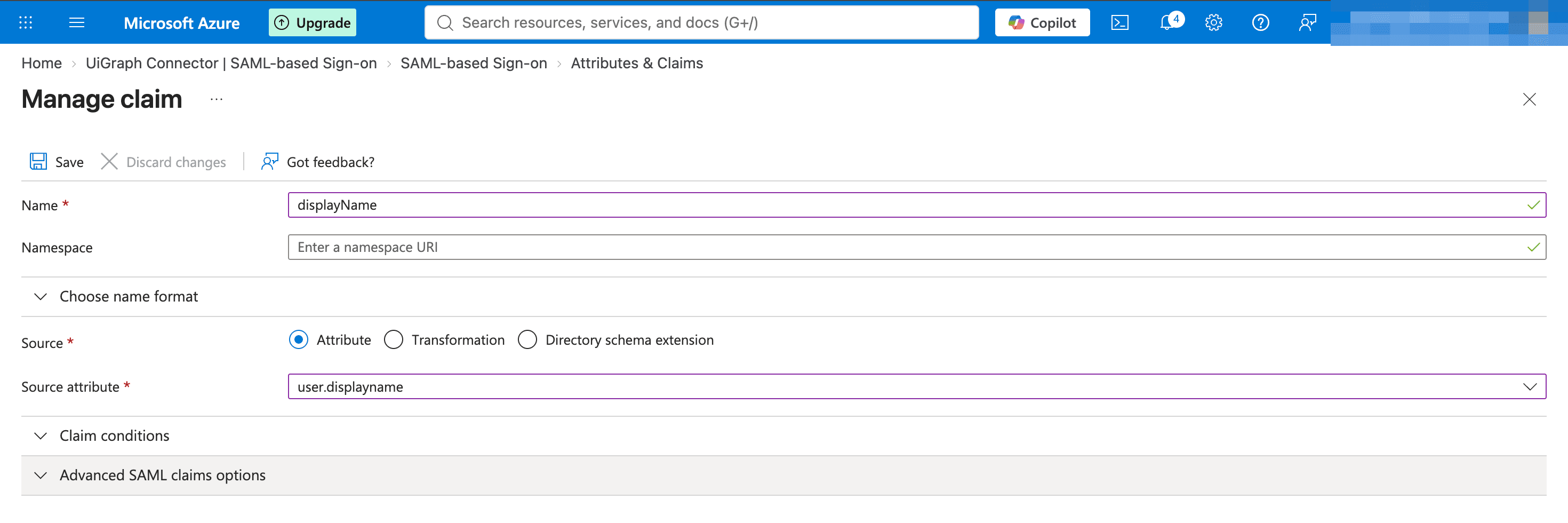
Leave the namespace empty on both. A namespace becomes part of the attribute name, and UIGraph would no longer find it.
Test the provider
- Keep the provider enabled and save all changes.
- Open a private browser window.
- Enter the test user's email on the UIGraph sign-in screen.
- Select the organization and then the SAML provider.
- Authenticate at the IdP.
- Confirm that the user returns to UIGraph with the expected organization role.
If the organization does not appear after entering the email, the user must already be a member or the organization must have a matching discovery domain. Domain management is currently available through the API but not the SSO settings page.
Validation performed by UIGraph
For a login initiated by UIGraph, the ACS validates:
- The response signature against the configured IdP certificate.
- The expected audience/entity ID.
- The ACS recipient and destination constraints enforced by the SAML library.
- Assertion time constraints.
- The response's relationship to the stored AuthnRequest ID.
- The one-time RelayState and its 10-minute expiry.
- The presence of a NameID.
Encrypted assertions are supported when they target the SP key contained in UIGraph metadata.
Unsupported SAML behavior
- IdP-initiated login is not supported because UIGraph requires a stored RelayState and AuthnRequest ID.
- SAML Single Logout is not supported.
- IdP session termination does not revoke an existing UIGraph session.
- Automatic metadata refresh and certificate rollover scheduling are not provided.
Troubleshooting
| Symptom | Check |
|---|---|
| Organization does not appear | Add a matching organization discovery domain or pre-create the user's membership. |
| Provider button does not appear | Confirm the provider is enabled and belongs to the selected organization. |
no pending authn request | Start login from UIGraph; IdP-initiated responses are unsupported. |
| Invalid RelayState or request | The one-time state may have expired, been reused, or belong to another provider. Restart login. |
| Audience or recipient validation fails | Copy the generated entity ID and ACS URL exactly, including scheme, host, organization ID, and slug. |
| Signature validation fails | Refresh the IdP metadata or certificate, especially after certificate rotation. |
| Configured email attribute was not returned | Add the exact attribute to the IdP assertion or clear the field to use NameID. |
User receives 403 Forbidden | Check allowed domains, Allow new users to sign up, and whether the UIGraph account is disabled. |
| User receives the wrong role | Check rule order, attribute spelling and values, then the default role. |
| Redirect uses the wrong host | Correct UIGRAPH_PUBLIC_URL and update the IdP application with the regenerated URLs. |