

GitHub App
UIGraph imports repositories through a GitHub App. Users install it on their own account or organization, pick a repository, and UIGraph onboards it with GitHub Actions.
Every self-hosted installation needs its own app. Until you create one and set its values on the API, GitHub Actions is not offered as a way to onboard. Skip this page if your users onboard with the UIGraph skill instead.
Before you start
- You can create apps on the GitHub account or organization that should own this one.
UIGRAPH_PUBLIC_URLis set and reachable from GitHub, because GitHub sends webhooks to it.
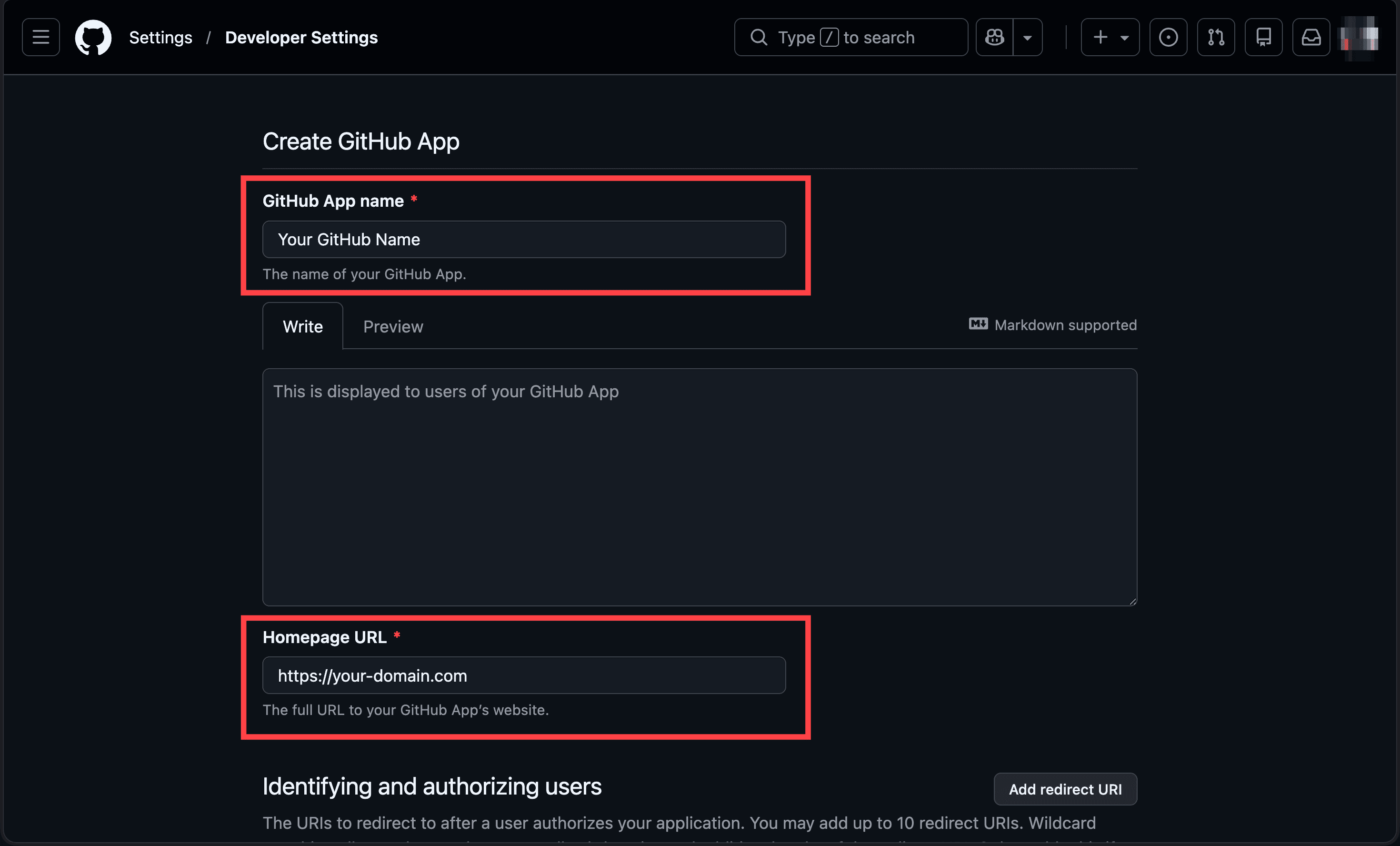
1. Name the app
Open github.com/settings/apps/new, or your organization's settings if the app should belong to the organization. Give the app a name and set Homepage URL to your UIGraph address.
2. Set the URLs
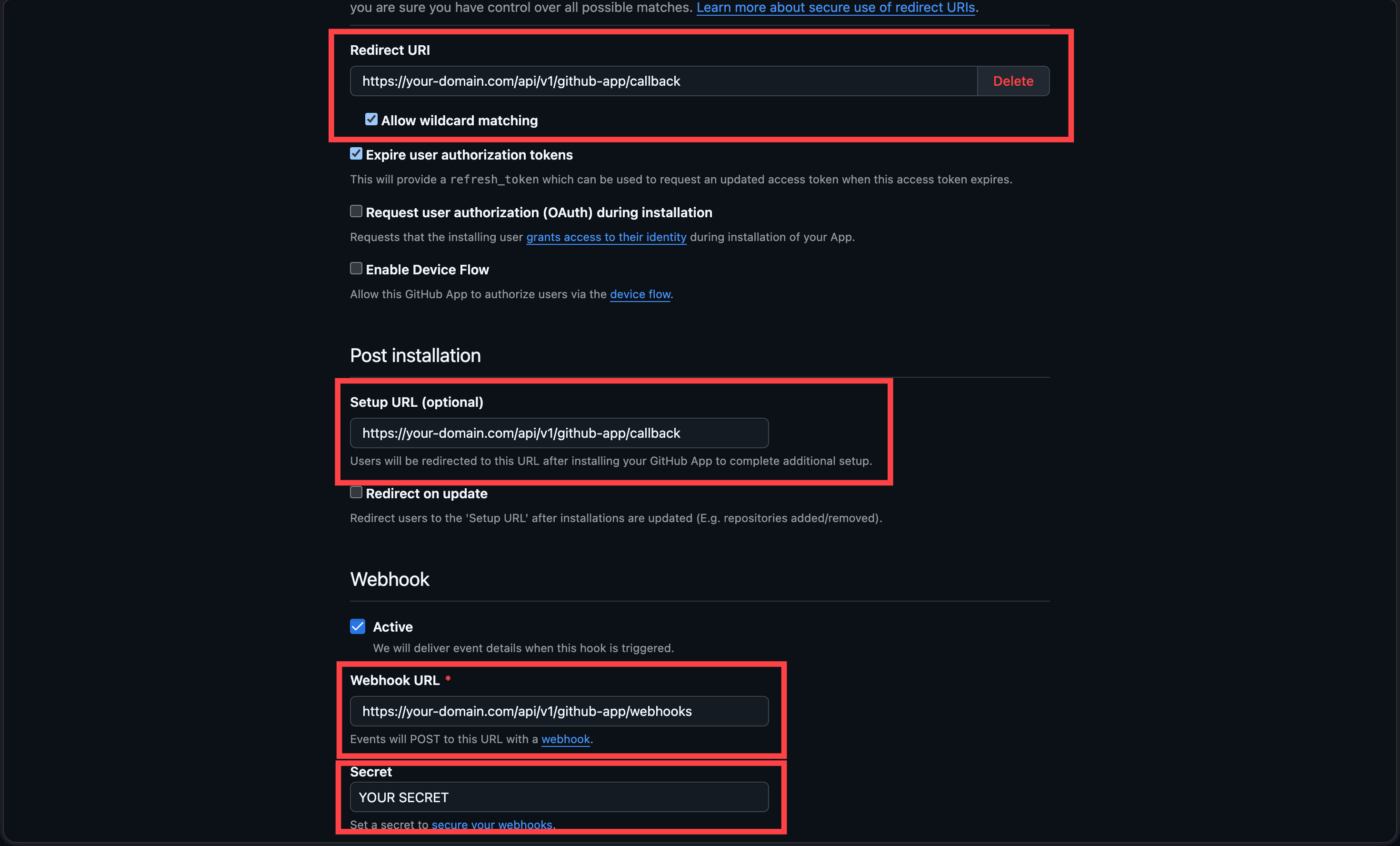
Replace your-domain.com with your UIGRAPH_PUBLIC_URL in each value below.
| Field | Value |
|---|---|
| Redirect URI | UIGRAPH_PUBLIC_URL + /api/v1/github-app/callback |
| Setup URL | UIGRAPH_PUBLIC_URL + /api/v1/github-app/callback |
| Webhook URL | UIGRAPH_PUBLIC_URL + /api/v1/github-app/webhooks |
| Secret | Any strong random value. Keep it, you need it again in step 5. |
Turn on Allow wildcard matching under the redirect URI, and keep Webhook set to Active.
3. Choose permissions
Under Repository permissions, grant these and leave everything else at No access.
| Permission | Access | What it is for |
|---|---|---|
| Metadata | Read-only | List the repositories the app can see and read their details. |
| Contents | Read and write | Create the onboarding branch and commit the generated files. |
| Workflows | Read and write | Commit the three UIGraph workflow files under .github/workflows. |
| Pull requests | Read and write | Open the pull request at the end of a run. |
| Actions | Read and write | Follow the onboarding run and retry failed jobs. |
GitHub selects Metadata for you and does not let you remove it.
4. Subscribe to events
Under Subscribe to events, select Workflow job, Workflow run, and Pull request. UIGraph uses the first two to follow an onboarding run as it happens, and Pull request to tell whether the pull request it opened was merged or closed without merging.
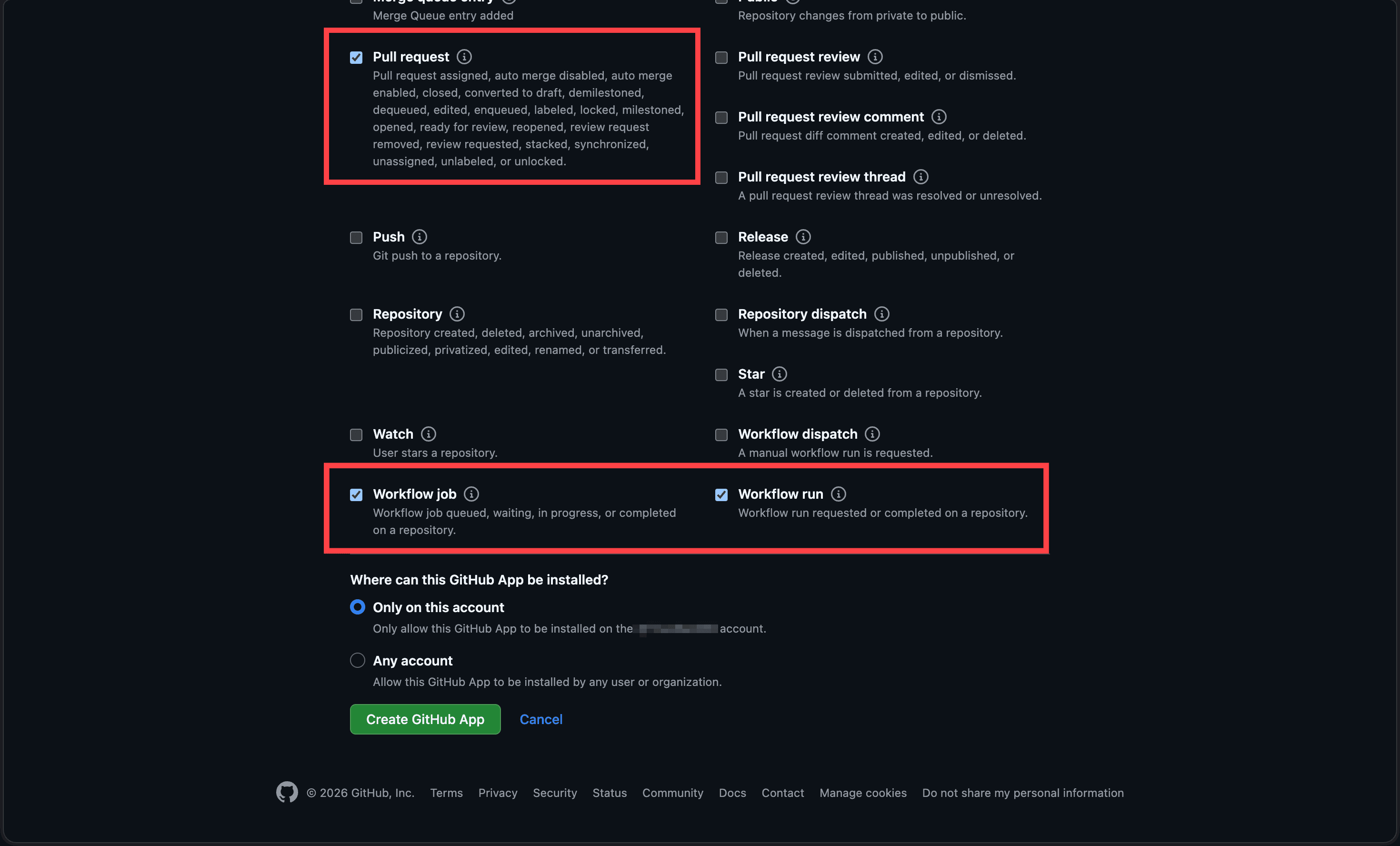
Under Where can this GitHub App be installed?, choose Any account if repositories outside the owning account should be able to install it. Then select Create GitHub App.
5. Set the values on UIGraph
The app's settings page now has everything the API needs.
| On the app's settings page | Environment variable |
|---|---|
| App ID | GITHUB_APP_ID |
| The last part of the app's public URL | GITHUB_APP_SLUG |
| Client ID | GITHUB_APP_CLIENT_ID |
| Generate a new client secret | GITHUB_APP_CLIENT_SECRET |
Generate a private key, then encode the downloaded .pem file | GITHUB_APP_PRIVATE_KEY_BASE64 |
| The webhook secret from step 2 | GITHUB_WEBHOOK_SECRET |
Encode the private key with:
base64 < your-app.private-key.pem | tr -d '\n'The first five go together. Set all of them or none of them, otherwise the API will not start. GITHUB_WEBHOOK_SECRET is counted separately, and without it UIGraph does not accept webhooks from GitHub, so onboarding runs are never followed. Restart the API once all six are in place.
On GitHub Enterprise Server, also change GITHUB_API_URL and GITHUB_WEB_URL. Every variable is listed on UIGraph API.
Check it works
Open a UIGraph organization as an admin, start onboarding a service, and pick GitHub Actions. Install GitHub App should open GitHub and return you to UIGraph with the account connected.
| Symptom | Check |
|---|---|
| GitHub Actions is not offered | All five required variables are set and the API restarted cleanly. |
| GitHub returns you without connecting | The redirect URI and setup URL match UIGRAPH_PUBLIC_URL exactly, including scheme and host. |
| The run page never moves past a phase | GITHUB_WEBHOOK_SECRET matches the secret on the app, and the webhook URL is reachable from GitHub. Recent Deliveries on the app's Advanced page shows what GitHub sent and what it got back. |
What your users run into once the app works is covered in Troubleshooting.